
Lumy-AI Photo Video Generator
Ocean Float MobileArt & Design
4.6234.00 Reviews
- Version
- 2.0
- Installs
- 500.00K
- Age Rating
- Everyone
Screenshots

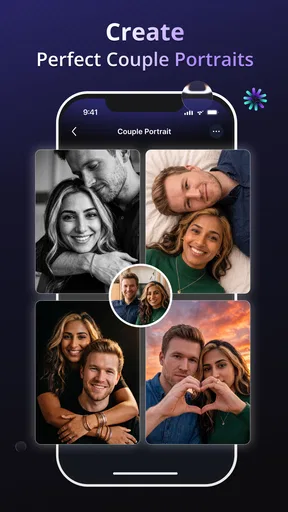
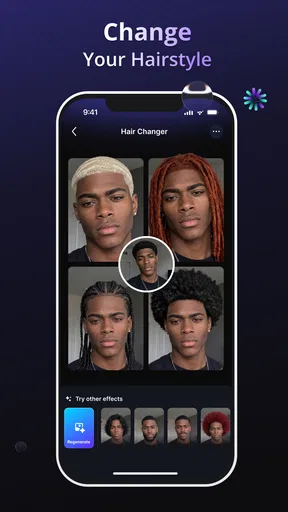
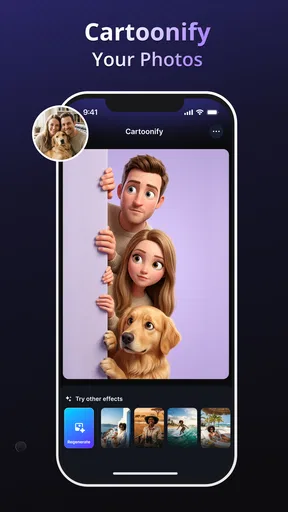
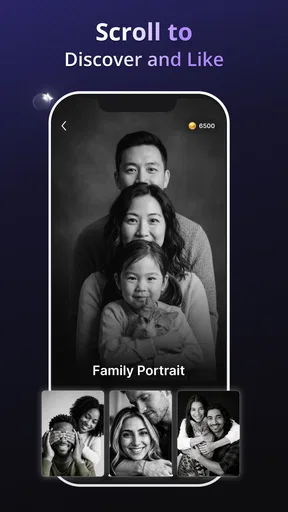

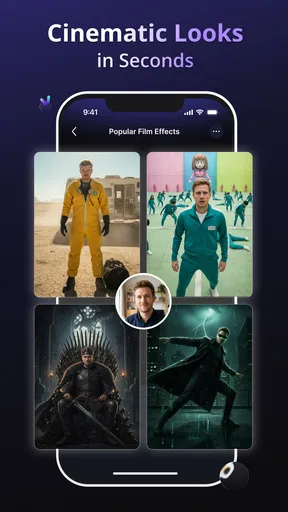
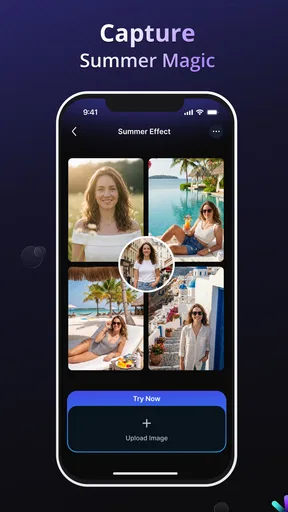
Our Review of Lumy-AI Photo Video Generator
 Analysis by Appyee
I approached Lumy as a practical creative tool rather than as another app promising to replace a full desktop editor. Its focus is clear: turn written ideas into visual artwork, add effects, remove backgrounds, and improve portraits or other photos with retouching tools. That combination makes it interesting for quick social posts, profile images, small promotional graphics, and personal experiments where speed matters more than complete manual control.
After spending time with it, my view is fairly simple. Lumy is most appealing when I want to move from an idea to a finished-looking image without opening several separate apps. It is less convincing for detailed design work, careful photo restoration, or projects where I need exact control over every layer and adjustment. The right choice depends on whether convenience or precision is more important to you.
How I would decide whether Lumy fits my workflow
The first question I would ask is what kind of creative work I do most often. If I usually start with a photo, need to isolate a person or object, and want to make the result look more polished, this app brings several useful steps together. If I mainly draw by hand, build branded layouts, or edit long video projects, I would look toward a more specialized tool instead.
Lumy belongs to the Art & Design category, but I would not treat it as a traditional drawing studio. Its appeal comes from assisted creation. You describe an idea for artwork, shape an existing image with visual effects, clean up the background, or apply retouching rather than constructing everything manually from a blank canvas. That distinction matters because the app rewards experimentation and quick decisions.
I also considered how much patience a typical phone user has for learning. A mobile editor can be powerful and still be frustrating if every basic action requires a tutorial. Lumy feels aimed at people who want visible results quickly. That is useful for beginners, but experienced editors may notice the trade-off: a simpler path usually means fewer opportunities to fine-tune the result.
For a realistic everyday example, imagine that I take a product photo for a small online listing. The room behind the item is distracting, the lighting is ordinary, and the image needs a more attractive presentation. I can use the background eraser to separate the product, apply a restrained effect, and use retouching only where it improves the image. The important word is restrained. The fastest way to make an edited photo look artificial is to use every effect at full strength.
Another useful scenario is preparing a quick invitation or social post. I might begin with a short visual idea, generate an artwork direction, then combine it with a personal photo or typography in a separate finishing step if needed. Lumy is valuable here because it reduces the distance between a rough concept and something shareable. It is not necessarily the only app I would use, but it can be the place where the visual idea takes shape.
What the main tools are good at
The text-to-art function is the feature I would explore first when I have a concept but no suitable image. It changes the starting point from searching through stock photos or trying to draw from scratch to describing the mood, subject, and visual direction I want. The quality of the result will depend heavily on how clearly I describe those elements, so vague prompts are likely to produce less useful starting points.
I get better results from treating the generated image as a draft rather than a final answer. I would describe the subject first, then add the setting and mood, and only after that mention stylistic details. This makes it easier to understand which part of the idea needs changing. If the result is close but not right, adjusting one part of the wording is more helpful than rewriting the entire concept every time.
Visual effects are more useful when they support a purpose. A subtle treatment can help a portrait feel warmer or make a simple image more suitable for a post. Strong effects can hide detail, distort skin tones, or make an otherwise believable photo look processed. I would preview the image at its normal viewing size before deciding that an effect works; a result that looks exciting while zoomed in may be too aggressive when seen in a feed.
The background eraser has a practical advantage over many one-purpose editing apps: it sits alongside the creative tools instead of forcing me to export an image and begin again elsewhere. I would use it carefully around hair, thin objects, transparent items, and irregular edges. Those areas are where automatic separation tends to need the most attention, and a clean background is often more important than an elaborate effect.
Retouching is another area where moderation matters. I see it as a way to reduce distractions rather than redesign a person’s face. Small corrections can make a portrait feel cleaner, while excessive smoothing removes texture and expression. For profile images, I would keep the original beside the edited version and compare them before saving. That simple check helps prevent the familiar problem of losing natural detail without noticing.
Three less obvious ways I would use it
One useful workflow is to create several visual directions before committing to a final image. Instead of asking for one perfect result, I would use text-to-art to explore different moods for the same idea, then choose the direction that communicates best. This is particularly helpful when I know the subject but have not decided whether the image should feel playful, calm, dramatic, or minimal.
A second workflow is separating the subject before applying creative treatment. If I want a person or object to remain clear, I would remove the distracting background first, inspect the edges, and only then add effects. This order gives me a better chance of keeping the main subject readable. Applying a dramatic effect before checking the cutout can make it harder to tell whether a problem comes from the selection or from the filter.
A third insight is to treat retouching as the final polish, not the first step. I would establish the composition and overall mood before correcting small details. Otherwise, I may spend time perfecting a face or object that later gets covered by an effect or changed by a different background. That sequence saves effort and usually produces a more coherent result.
These workflows show where the app’s combination of tools matters. A standalone background remover may handle one task more directly, and a dedicated retouching app may offer more specialized controls, but Lumy reduces the need to move between separate mobile editors. The benefit is not just fewer app switches; it is also fewer chances to lose image quality or forget which version is the latest.
Where Lumy has the strongest case
For me, Lumy wins on convenience. The app gathers text-based creation, effects, background editing, and retouching in one place, so it suits people who want a fast creative loop. I can begin with an idea, test a visual direction, clean up an image, and polish the result without building a complicated workflow from separate tools.
It is also approachable for users who do not think of themselves as designers. Someone preparing a birthday image, a casual announcement, a profile picture, or a small shop post may not want to learn professional editing terminology. The assisted approach lowers the barrier to trying something new. I would recommend it to a friend who wants more than a basic filter but does not want the full complexity of a professional editor.
The app’s audience appears broad enough to include younger and older casual creators, with an Everyone content rating. That does not mean every generated image will suit every situation, so I would still review the result before sharing it publicly. An age rating describes the intended audience, not the quality or appropriateness of every possible creation.
Its reception also suggests that many people find the overall idea useful: Lumy has a 4.5 average from around 39 thousand ratings and has passed half a million installs. I would view that as a reason to try it, not as a guarantee that it will match my editing habits. Creative apps are personal; the same simplified workflow that helps one person can feel limiting to another.
Ocean Float Mobile has kept the current release at version 1.5, and I would make sure my device meets the minimum requirement of Android 7.0 or later before planning a workflow around it. The app is free to install, which makes testing the experience relatively easy. In-app purchases range from $1.99 to $44.99 per item, so I would explore the free experience first and only pay after I understand which tools I genuinely use.
Where a different kind of editor may be better
I would not choose Lumy as my main tool for professional layout work. If I need exact spacing, repeatable brand colors, carefully managed typography, or a large multi-layer composition, a dedicated graphic design editor is likely a better fit. Those apps may take longer to learn, but their precision is the point. Lumy is more attractive when the result matters more than a perfectly controlled construction process.
I would also look elsewhere for serious illustration. Text-to-art can help me explore an idea, but it is not the same as drawing every line, controlling a brush, or building a character through deliberate manual work. Artists who need pressure-sensitive painting, detailed layer management, or a dependable sketching environment may find Lumy too focused on assisted results.
Portrait specialists may prefer a dedicated retouching app when skin, hair, lighting, and facial adjustments need very careful control. Lumy’s retouching is convenient because it is part of a broader toolkit, but convenience should not be confused with depth. For a quick profile image, that trade-off is reasonable. For a professional portrait session, I would want more control and a workflow designed around the photograph itself.
The same distinction applies to video. Although the product name refers to photo and video generation, the clearly useful workflow I experienced centers on visual creation and image editing. If my priority were timeline editing, audio mixing, captions, transitions, or precise video pacing, I would choose an editor built specifically for those tasks. Lumy makes more sense as a creative image companion than as a replacement for a full video workstation.
What switching to Lumy feels like
The cost of switching is mostly about changing habits. Users coming from a manual editor may need to accept that the app often begins with an assisted result rather than a blank, fully controllable canvas. That can feel liberating when I am short on time, but it can also be frustrating when I have a very specific visual target and the generated or automated result is only approximately correct.
There is also a decision cost around subscriptions or purchases in any free creative app with paid items. Since Lumy can be installed without an upfront price, I would first test the actions I expect to use most: create a text-based image, remove a background, apply an effect, and retouch a photo. I would then decide whether the available free workflow is enough. Paying before identifying a real need is an easy way to spend money on tools that remain unused.
My practical advice is to keep original photos untouched and work from copies. That is good editing practice in general, but it matters especially when several automated tools are involved. I would also save a clean version before adding strong effects. This gives me a useful fallback if the final treatment looks impressive at first but becomes tiring after a few minutes.
Another switching issue is consistency. If I create several images for the same personal project, I would test the effect and retouching choices on a small sample before editing everything. Automated creative tools can produce attractive individual images that do not look like they belong together. A shared visual approach is easier to maintain when I decide on a restrained style early.
My recommendation for different users
I recommend Lumy to casual creators who want a single mobile app for experimenting with visual ideas and improving everyday photos. It is especially suitable for someone who wants to make social content, profile images, simple promotional visuals, or personal artwork without learning a professional editing suite. The free entry point makes it sensible to try before spending anything.
I would also recommend it to people who regularly move between several small editing tasks. If I often need to remove a background, add a visual treatment, and make a portrait look cleaner, keeping those steps together is genuinely convenient. The strongest results will come from using the tools with restraint and treating automated output as a starting point that deserves a quick review.
I would skip it if my priority is exact manual control, advanced illustration, detailed brand design, or serious video production. In those cases, a specialized alternative may require more effort but will better match the work. Lumy is not weakened by that distinction; it simply has a different purpose.
Overall, I see Lumy as a useful middle ground between a basic filter app and a demanding professional editor. It gives me more creative range than simple one-tap enhancement while keeping the process approachable. My clear recommendation is to install it if speed, experimentation, and an all-in-one mobile workflow matter to you. Try the core tools on real images, judge the results at normal viewing size, and consider paid options only after the app has earned a regular place in your routine.
Privacy and Permissions
See what permissions an app requests and how it handles your data.
- Camera
- take pictures and videos
- Other
- view network connections, full network access, run at startup, prevent device from sleeping, Google Play license check, read Google service configuration
Verdict
Strengths of Lumy-AI Photo Video Generator
- Creates polished AI photos and videos with minimal editing effort.
- Offers creative styles for social posts, avatars, and visual experiments.
- Simple interface makes it approachable for beginners.
- Can turn ordinary images into more imaginative, stylized content.
- Useful for generating ideas when you lack photography or design skills.
Limitations of Lumy-AI Photo Video Generator
- Results can vary noticeably depending on the source photo.
- Some advanced styles or exports may require a paid subscription.
- AI processing may take longer when servers are busy.
- Generated faces, hands, or small details can occasionally look unnatural.
- Uploading personal photos may raise privacy concerns for some users.
Other Releases by Ocean Float Mobile
View All
MePic-AI Photo Video Generator
Art & Design4.5

Shopping All-in-one: Compare
Shopping4.1
Similar Picks in This Category
View All
Canva: AI Photo & Video Editor
Canva4.8

PENUP – Drawing-sharing SNS
Samsung Electronics Co., Ltd.4.5

Crafto
Kutumb App4.6

Sketchbook
Sketchbook4.1

ibis Paint X
ibis inc.4.5

Adobe Express: AI Photo, Video
Adobe4.6
Frequently Asked Questions
What is Lumy-AI Photo Video Generator and what can it do?
Lumy-AI Photo Video Generator is an AI-powered creative app designed to turn photos and text ideas into animated images, short videos, and stylized visual content. It can be useful for social media posts, profile pictures, storytelling, and personal projects. The exact results depend on the selected effect, prompt, source image quality, and the tools currently available in the app.
Is Lumy-AI Photo Video Generator free to download and use?
The app may be free to download, but some features, effects, export options, or higher-quality generations can require in-app purchases or a subscription. Before creating a large number of videos, check the pricing page, trial conditions, renewal details, and any credit system shown in the app store listing. Availability of free generations may also vary by account, region, and promotional offer.
Do I need an internet connection to use Lumy?
Yes, an active internet connection is generally required because AI image and video generation is usually processed on remote servers rather than entirely on the phone. A stable Wi-Fi or mobile-data connection helps prevent failed uploads and interrupted generations. Processing time can vary according to image size, video length, server demand, and the complexity of the selected effect or prompt.
Is Lumy safe for uploading personal photos?
You should review Lumy’s privacy policy and permission requests before uploading personal or sensitive images. Avoid using photos containing confidential documents, private information, or people who have not agreed to the upload. Also check how long uploaded files and generated content are stored, whether they may be used to improve services, and how you can request deletion of your data.
What kind of photos produce the best results in Lumy?
For more consistent results, use clear, well-lit photos with the subject facing the camera and minimal obstruction around the face or body. Images with heavy blur, extreme angles, multiple overlapping people, poor lighting, or complicated backgrounds may produce distorted animations. Following the app’s recommended aspect ratio and selecting an effect that matches the photo usually improves the final video quality.
